Ralph (The Simpsons)
📦 Classic Ralph Wiggum scenes from The Simpsons: he waits at his school desk with an empty Valentine mailbox, cycling through hope, confusion, and heartbreak. Send when you feel left out, got no replies, or a wait (Valentine's or otherwise) didn't go as hoped. The 'Ralph (The Simpsons)' pack includes 10 stickers ready to share. Free download to install on WhatsApp.
-
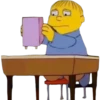
🤔 Checking the Box
Ralph holds up his pink mailbox and stares at it with a blank look. When you check again, just in case.
-

😮 Stunned Silence
Ralph sits stunned with his mouth open as the empty mailbox hangs on his desk. That moment when you realize nobody wrote back.
-
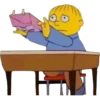
👀 Peeking Inside
Ralph opens the pink mailbox and looks inside, finding nothing. When you look one more time, still empty.
-
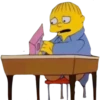
😟 Worried Look
Ralph stares at the mailbox on his desk with a worried, open-mouthed look. When something feels off and you can't figure it out.
-

👀 Holding It Up
Ralph holds up his labeled Valentine mailbox with wide, hopeful eyes. Presenting proof that you were ready... and still got nothing.
-

🤗 Comforting Hug
Ralph presses the empty mailbox to his cheek with eyes closed. When all you have left is the empty thing you waited for.
-

😞 Sad Waiting
Ralph sits with a deep frown, arms folded, empty mailbox hanging below. When the wait is over and nothing came.
-

😩 Exhausted Sigh
Ralph closes his eyes and opens his mouth in a tired, defeated sigh. When you're done waiting and just tired of it.
-
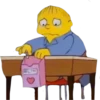
👇 One Last Check
Ralph looks down and pokes at his still-empty Valentine mailbox. Just one more look before you accept it's empty.
-
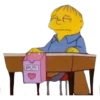
😞 Giving Up Hope
Ralph looks down with half-closed eyes, fully resigned to the empty box. When you've accepted that nothing is coming.
Download and Install on WhatsApp
The Sticker Maker app is necessary to install this sticker pack on your WhatsApp. If you don't have it, download it from: Google Play Store and App Store. Once you have it on your phone, follow these instructions:
- Download the sticker file we provide below (it has the .wastickers extension). Locate the downloaded file on your mobile and tap it. Your device will ask you which application you want to open it with; select Sticker Maker. The app will automatically recognize the file as a new sticker pack.
- Once you see the pack inside Sticker Maker, just press the button that says "Add to My Library", then "Add to WhatsApp" and that's it! Your new stickers will be available for use in all your WhatsApp conversations.